
Setting up a Local Service Ads account is a powerful way to generate leads, but simply turning it on isn't enough. To truly capture market share, you need to optimize the profile settings, budget, and service areas.
Use this checklist to walk through your profile and budget sections to ensure maximum visibility.
1. Ad Schedule Optimization

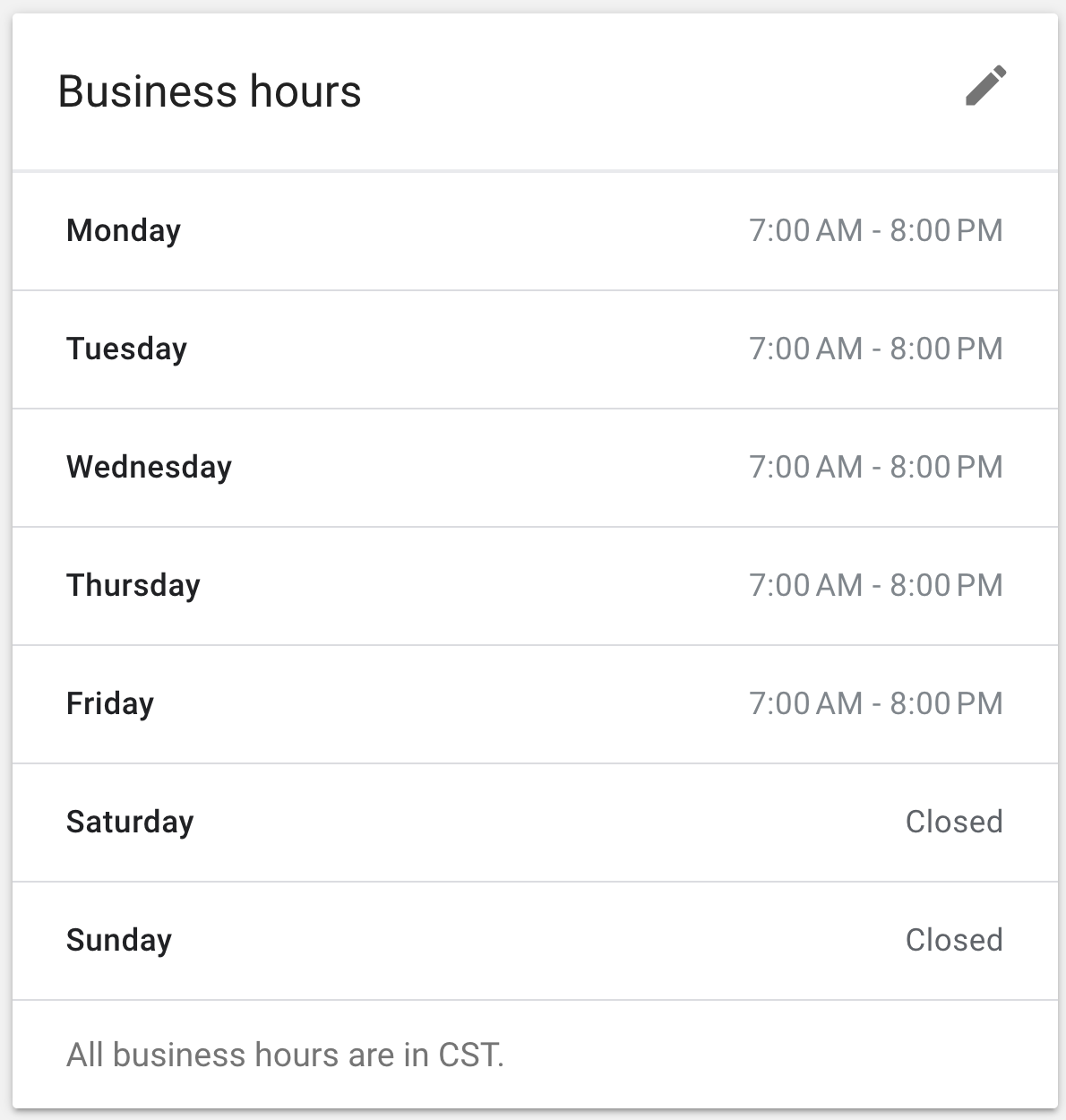
When looking at a new profile, the first thing to check is the ad schedule. You have three options: show during business hours, custom hours, or all day.
- The Recommendation: Change this to All Day if appropriate for your business model.
- Where to edit hours: You can find this in two places:
- At the very top of the dashboard (Ad Schedule) - choose all day.
- At the bottom of the "Profile & Budget" screen under "Business Hours."
2. Tracking and Bio Attributes
Website Tracking
Ensure you have a UTM parameter attached to your website link in the Profile & Budget section. This allows you to track exactly how much traffic is coming specifically from your LSA profile versus organic search.
Business Bio & Attributes
You are able to select up to 6 attributes that apply to your business.
Pro Tip: If you have a Better Business Bureau (BBB) profile and you are accredited/rated, you can actually get that attribute added. You cannot do this yourself; you must contact LSA support and ask them to add the BBB attribute for you manually.
3. Bidding & Budget Strategy
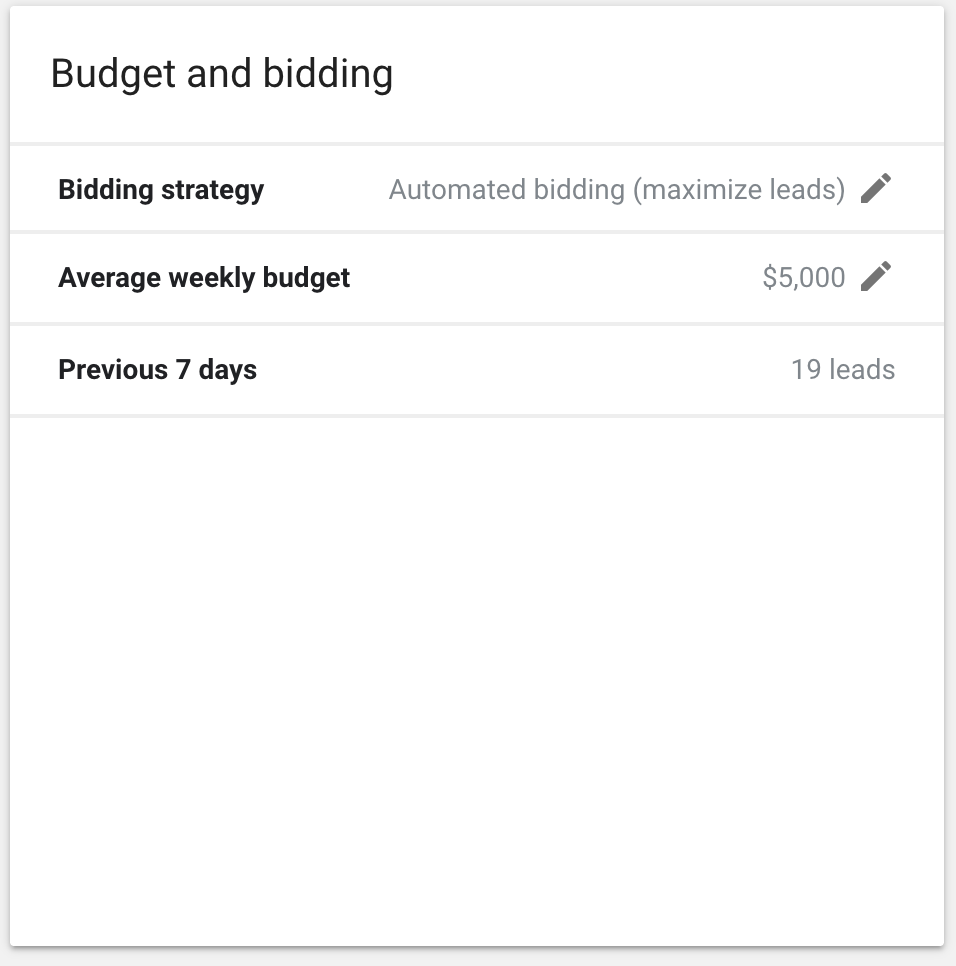
Bidding Types
- Manual Bidding: You set a maximum cost per lead.
- Automated Bidding (Recommended): Set to "Maximize Leads." This lets Google's algorithm determine the bid required to get you the most volume.
The "High Cap" Budget Strategy
Many advertisers worry about overspending, but in LSA, the budget acts more like a ceiling than a target.
- Example (Roofing Industry): Even with a max budget set to $5,000 per week ($21,715/month), it is very rare to actually spend that full amount.
- Why do it? Setting a high cap ensures your ad never turns off due to budget constraints during peak times. You might only spend $5,000 in a whole month, but the high weekly cap allows you to capture every possible lead.
4. Job Types & Categories
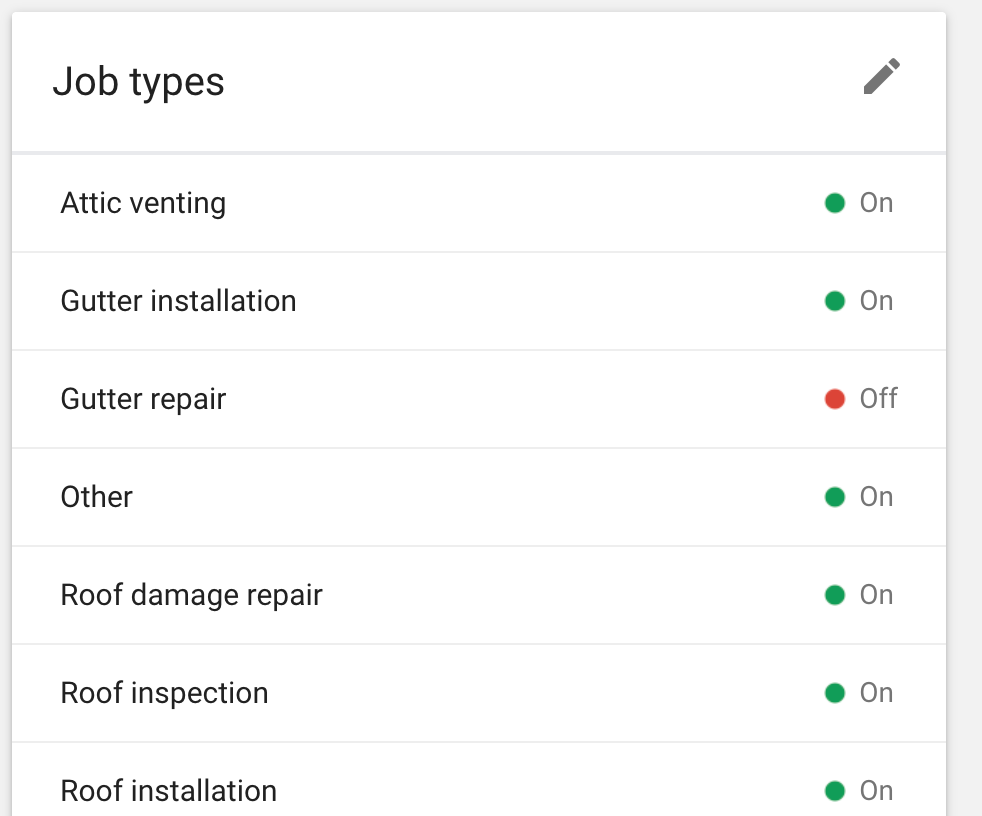
There is a correlation between the number of job types selected and ad performance.
- The Strategy: Turn on as many job types as possible within your main category. Research suggests that enabling more job types helps your ad rank better for general category searches.
- The Trade Off: You may pay for unqualified leads but this Readdit thread shows this as a strategy for better opportunities for ranking / more leads..
- Multiple Industries: If you do roofing, siding, and windows, ensure you add the distinct "Industry" for each (e.g., add a specific Industry for Windows and another for Siding) rather than just relying on the Roofing category.
5. Photos & Visuals
You can add up to 100 photos to your profile. Do not leave this empty. Rotate them out as you hit the limit.
Recommended Photo Mix:
- Photos of your team/people.
- Action shots (people working).
- Finished products/projects.
- Branded assets (trucks, building exterior).
6. Settings & Service Areas
Critical Settings
- Message Leads: Turn this ON. The more communication methods you offer (text/email), the higher the chance your ad is shown.
- Direct Business Search: Turn this ON. This highlights your business when someone searches for your brand name directly. Note: You typically do not get charged for leads from returning customers.
- Booking Connection: You can link this if your CRM/Platform supports it.
Service Area Configuration
Important: Do not set up your service area by Zip Code. It is too finicky and you will miss small gaps between zones.
The Solution: Set up your service area by County. Look up a county map of your state and add the list of counties you service. This ensures comprehensive coverage without gaps.
Summary: New Profile Verification Checklist
If you are setting up a brand new profile from scratch, you will need to complete the verification "stack" before you can optimize the settings above:
- Certificate of Insurance: Upload valid COI.
- Google Ads Connection: Link to a Google Ads account for payment processing.
- Background Checks: Complete checks for the business owner and (depending on the industry) employees.
- Google Business Profile: Link your GBP.
- Reviews: You must meet the minimum review count threshold for your ads to go live.